“fedup” with Fedora!

Fedora 18 “Spherical Cow”

f18release

I think everyone has a bit of a love/hate relationship with their technology.  We hate it when it doesn’t work, or we can’t figure something out, or something breaks or doesn’t make sense.  But we love the new upgrade, the fancy new desktop background, animated menus, or what have you.  Fedora 18 was just recently released so of course I had to jump on that and get all the new stuff here as quickly as possible.  Is it great?!?  Was it worth the wait?  Is it a waste of time?  Do I love it?  Do I hate it?  Yes!

fedup (or fedora upgrade)

Over the past week I’ve been migrating several of my machines from Fedora 17 to Fedora 18.  The old “preupgrade” tool that was available for upgrading your system to new releases no longer is available for upgrading to fedora 18. Instead a new utility called “fedup” is provided.

What do I think of the new “fedup” tool?  For me on my systems it has been a resounding #fail.  Both systems I tried to update got trashed.  In the first case I was able to run “fedup” and do the initial pre-load.  Upon rebooting I was able to do the “upgrade” boot and the installer ran all the way through to the end and it all looked really good.  But when I rebooted after completing the upgrade I found a mess.  My system couldn’t boot or booted partially into an error state of not being able to find what it needed.  I didn’t continue to debug or try to figure out what happened.  Personally I’d rather have a fresh clean system, than a trashed system that’s been just barely patched together enough to boot and run.  So I blew everything away and loaded from scratch off the DVD ISO.

On the second machine (a laptop this time.)  I ran fedup and prep’ed the system for upgrade, rebooted into the upgrade installer and proceeded with the upgrade.  But partway through the package installation process my entire machine rebooted with no warning.  This laptop isn’t prone to doing that sort of thing.  Blame it on the hardware?  Maybe, but …. ???  This also left me with a system that wouldn’t boot, so again I blew it all away and loaded Fedora 18 from scratch off the DVD.

In both cases, installing from scratch from the DVD worked flawlessly after seeing fedup fail.  On my other machines, the DVD install from scratch has worked well.  So fedup is a #fail, but otherwise I’m happy.  There’s something to be said about a clean system that hasn’t carried over all the cruft from previous revisions and years of use, so I’m not entirely unhappy that I was forced to install my systems from scratch.  (I have a sophisticated backup system “backuppc” and store my home directories on separate hard drives, so an install from scratch is not as big a deal as it might be if I had everything on a single drive with no backups.)

Freshly installing Fedora 18

In all cases (for me) installing from scratch has worked perfectly.  I’m disappointed that the upgrade didn’t work, but the fresh install procedure works quite well.  In my case what ultimately happens with a fresh install is that later I stumble on packages I forgot about or configurations or tools I had setup for some task on the old machine, and a few months later when I need to do something again, I discover that and need to scramble to get it going again from scratch on the new system.

Here are some installation hints, tips, and tweaks for Fedora 18 that I discovered along the way:

  • Naming your machine: the layout of the network config dialog box caused me to miss seeing the field where you enter the machine name.  When I was all done, I had “localhost.localhost” which I was not happy about.  I used: “hostnamectl set-hostname <name>” to set the domain name (which seems to be the way to do it on Fedora 18).  There are some nuances of fully qualified domain names that I’m not sure I got 100% right, but for now it’s close enough, the machine has a name.  The real answer is to make sure you enter your machine name during the install process (in a box way down in the lower left of the screen that can be easy to miss.)
  • Picking a drive: one other area of the installer that I tripped on was also mainly due to screen layout/ui issues.  I was installing over the top of an existing linux system and I wanted to wipe those existing partitions.  So after selecting the target disk, there is a continue button hidden in the lower right corner of the screen.  Hit that and you can go on to “reclaim” the space, delete the existing partitions and let the installer automatically reformat and repartition that area that is now available.  (Note it happily works around existing windows partitions on a system that’s already setup for dual boot.)
  • Nvidia drivers: several of my machines have nvidia graphics hardware.  I am heavily involved in FlightGear which requires 3d hardware acceleration.  The nouveau drivers are ok for desktop work, but no where close to good enough for all out 3d graphics.  In the past I’ve downloaded the NVIDIA driver from nvidia.com and installed things manually.  This time around I added the rpmfusion.org repository and installed the akmod-nvidia package.  This seems to have worked well so far.  We’ll see how it gets through a kernel upgrade.  Being left in the cold for a few days with package mismatches isn’t really an option for me so I could be back to manual installation before long — depends on how quickly the rpmfusion.org guys can track fedora updates.

Tweaking for Personal Preferences

No one likes a straight up stock machine (except maybe iUsers) so right out of the starting gate we need to tweak and configure several things.  Here is my list of “must tweaks.”

  • “yum install vino”  This adds desktop sharing.  I have several computers on my home network and this helps manage and use them by allowing me to share and view desktops from one machine to the next.  I don’t need a monitor and keyboard and desk for each computer.  Look for “desktop sharing” to enable this and run “remote desktop” to connect to shared machines.  And yes, if you are wondering, I am a heavy ssh/command line  user too. :-)
  • “yum install gconf-editor”  This is a graphical tool that allows you to tweak gnome-shell options.
  • I run 2 monitors on my main machine and by default, gnome-shell makes all windows on the second monitor follow me to every virtual desktop.  If you aren’t sure what a virtual desktop is, then sheesh, how do you live?  I’d give up my coffee before my virtual desktops!  So to make the second monitor obey desktop switching run gconf-editor and Desktop->Gnome->Shell->Windows-> uncheck workspaces_only_on_primary
  • By default gnome only maps 4 virtual work spaces to hot keys.  Virtual desktops (err work spaces?) are worthless without being able to hotkey between them.  From a shell you can run the following command to assign Alt-1 to switching to the first virtual desktop.  Then replace 1 with 2, 3, 4, … to assign hot keys for up to 9 work spaces.  I usually do 6, that’s as crazy as I get: gsettings set org.gnome.desktop.wm.keybindings switch-to-workspace-1 “['<Alt>1']“
  • For what it’s worth, I tend to setup specific tasks (like email, or working on a program, or web browsing) each in their own virtual desktop, and then throughout the day I can hotkey back and forth between them as needed.  For the cynical, this is sort of like the instant spreadsheet “boss hack” on the old video game that I can’t remember the name of now.  Facebook and google+ can get their own virtual desktop. :-)
  • Autologin: I’m getting lazy in my old age so why not setup the machine to log me in automatically?  In “System Settings” (under user name in top bar when logged in) select “User Accounts”. Select the account and enable “automatic login”.
  • rpmfusion.org provides a number of packages that aren’t available in the default Fedora distribution.  I like installing mplayer which plays all those odd format movies.  Or maybe you want to be able to play mp3′s from rhythmbox.  Run this long command as root: yum localinstall –nogpgcheck http://download1.rpmfusion.org/free/fedora/rpmfusion-free-release-18.noarch.rpm http://download1.rpmfusion.org/nonfree/fedora/rpmfusion-nonfree-release-18.noarch.rpm  Then install what you want.  In my case I do: yum install mplayer ffmpeg gstreamer-plugins-bad gstreamer-plugins-bad-nonfree gstreamer-plugins-ugly unrar
  • NVIDIA hardware accelerated opengl drivers: A must for any gamer or flight sim enthusiast (or flight sim developer!)  Once you setup the rpmfusion.org repository you can run “yum install akmod-nvidia” to install nvidia drivers for your system.  Be sure to reboot to activate them.
  • Here is my personal list of extra packages I like to install on any fedora system: yum install emacs jpilot lsb gnumeric subversion subversion-devel apr apr-devel openal-soft openal-soft-devel freealut freealut-devel freeglut freeglut-devel libudev-devel fltk-devel fltk-fluid libopenvrlm-devel system-config-lvm librsvg2-devel libpng-devel libjpg-devel texi2html chrpathopencv opencv-devel aspell lm_sensors gnome-shell-extension-weather gnome-shell-extension-cpu-temperature gnome-shell-extension-systemMonitor gnome-tweak-tool libreoffice minicom inkscape
  • Virtualbox: I’ve always run virtualbox (now owned by oracle) but Fedora by default now has something called “boxes”.  I need to check that out at some point and see if it works.  If I can migrate my disk image over without needing to reinstall Windows XP again from scratch it might be worth doing, just to use default packages.  Oh by the way, I’m a linux guy, but I have windows xp setup in a virtual box to run a couple small programs once in a while.
  • Do you want to see the date on the status bar?  Run gnome-tweak-tool and do: Shell -> show date in clock -> on
  • Do you want google chome?  Go download the package from google and “rpm -Uvh <filename>.rpm”  Make sure you have run “yum install lsb” first to get the required supporting libs.

Conclusion

So far I’ve been very pleased with the newest release of Fedora.  Fedora 18 is a worthy successor to Fedora 17 and the previous versions too.  If you are coming from some other platform, you may find aggravations or things that don’t work (or don’t work the same way.)  But if you are coming from a Fedora background, everything I do works at least as good or better in the new Fedora 18.  With a bit of tweaking for personal preference, it offers a very solid and very powerful system with recent versions of the kernel, gnome, gcc, libreoffice, gimp and other major software packages.  It is built around standard open source packages so if there are glitches or things I (or others) might not like, you will often find the exact same behavior in other modern Linux distributions that are built on the same packages.  The upgrade installer “fedup” is worthless as far as I’ve been able to see.  But installing from scratch works great.  I can’t say if Fedora is better or worse than other linux distributions (I know we all have our personal preferences) but I will say that I’m a solidly commited “linux guy” and Fedora 18 is really great and the best Fedora so far.


Python Airfoil Manipulation Library

For lack of a better title …

I am creating a set of python libraries for designing and modeling aircraft.  Rather than spend a couple months learning a complicated and expensive CAD tool, why not spend that time learning python?  It makes perfect sense to me. :-)

Scripted modeling (versus interactive point and click modeling) is a different mind set, but the advantage is you can make a change to the script and rerun it and that change cascades through all the parts and drawings and layout sheets.  In a gui based CAD system if you need to change the radius of an alignment hole that runs through all your wing ribs, you might have to painstakingly edit each and every rib, right?  What if you want to move a stringer, or add an lightening hole, or increase the wing chord by 10%? Those can be daunting tasks in a typical cad system.  But in a scripted modeling system you may just need to change a number, or add a couple lines of code, and rerun the script and you are done.

Here are a few pictures to illustrate the sorts of things I am up to.  If you are a model builder I think you will immediately see what is going on.  Please click on the illustration for larger fully detailed versions.

The following image shows blending two different airfoils: NACA 63(3)618 into NACA0015.  Also shown is the ability size the airfoil to any scale and rotate it to any angle of incidence.

demo-blend

The next image shows (1) the ability to read in a standard airfoil plot, (2) fit a smooth spline interpolation through the original data set, (3) resample the airfoil at any resolution and step size, and (4) do an adaptive fit of the higher resolution data that conforms to a specific error tolerance.  Data reduction and fitting can be important for to keep file sizes from growing too large and for reducing cut times.

demo-fit

The final image shows features that are important to modelers.  The ability to cut in spars of any width and height that are flush with either the top or the bottom.  The ability to cut out stringers that are either vertical or tangent to the surface of the airfoil.  The ability to cut out a leading edge diamond and automatically orient it for the best fit and minimal sanding.  And finally the ability to cut lightening holes and add build alignment tabs.

demo-cutouts

Another capability the library currently has (not shown in the illustrations) is the ability to skin an airfoil by some width.  The library will shave off that amount in a sweeping arc that follows the original contour of the airfoil.  This would be appropriate (for example) if you planned to sheet your wing with 1/16″ balsa.  You can shave off that 1/16″ from the ribs so that when you do the final sheeting, you will be back to the exact airfoil dimensions you intended.  You can also shave off portions of the airfoil if you plan to only sheet a part of the wing and leave part of it as an open framework.

If you are curious what the python code to create these images looks like, you can go to the links below, but for example here are some basic lines of code you can add to your script:

Load an airfoil, do a smooth spline interpolation, and resample it at 1000 steps:

root = airfoil.Airfoil("naca633618", 1000, True)

Blend two different airfoils together with some weighted percentage:

rib = airfoil.blend( root, tip, percent )

Add a lightening hole at a specific location and radius:

rib.add_hole( hx, hy, hr)

Next up: the next major component of this system that I hope to tackle is laying out the top down plans of the wing. The output would be an svg (or pdf) file that you could send to a large format plotter and print out the exact wing plan for construction.

If you are interested in taking a closer look at this project, I have setup a git repository with all the code and demos at the following link:

The project README file (which includes quite a bit more background and details) can be read here:

I’m Thankful for my Senior Telemaster

This Thanksgiving day I’m thankful for many blessings: family, friends, neighbors, shelter, food, our siberian husky who lived 16 years, and many other things.  The weather was nice Thanksgiving morning so I was thankful to have an hour to run out to the field first thing to do some flying.

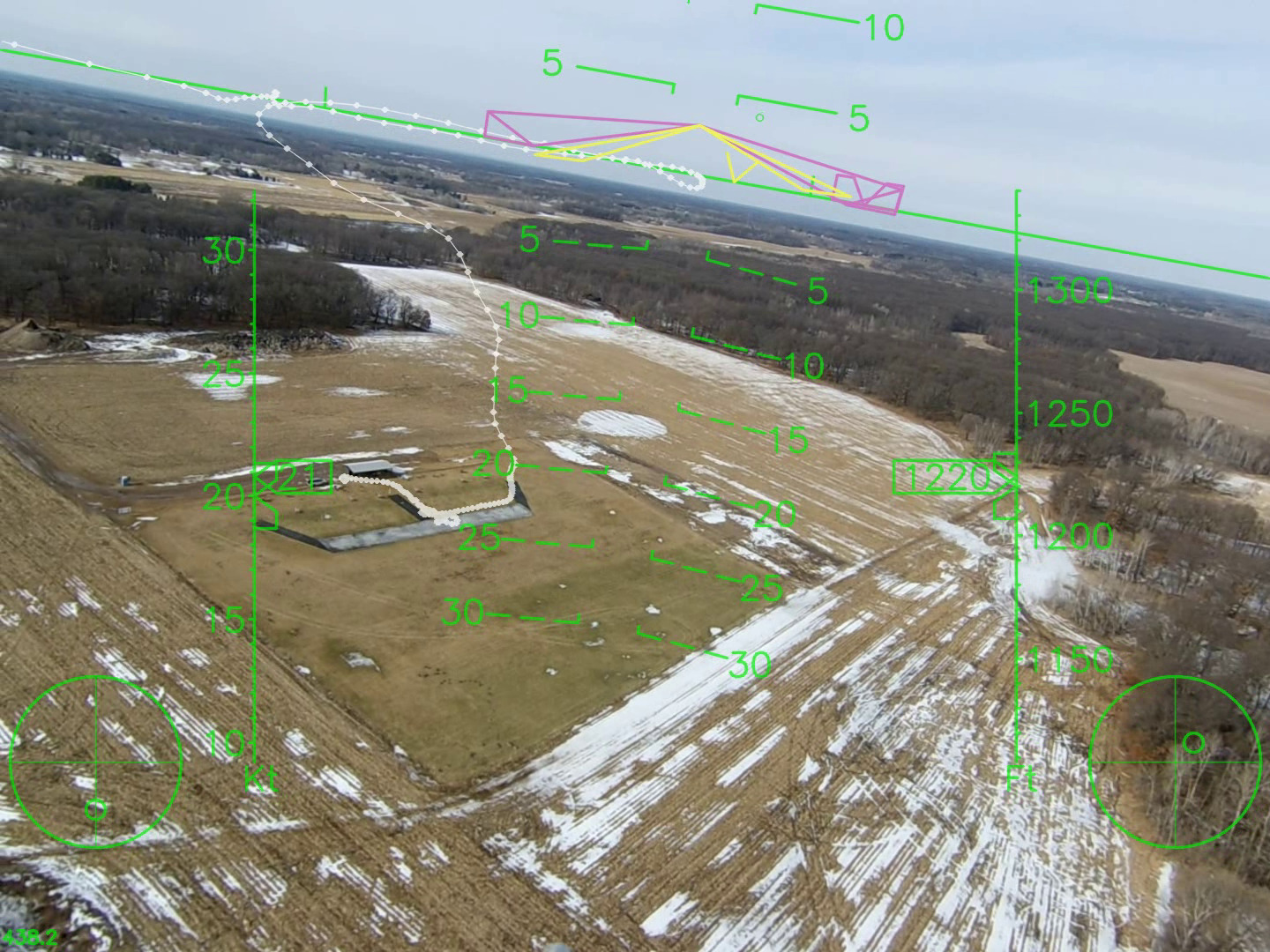
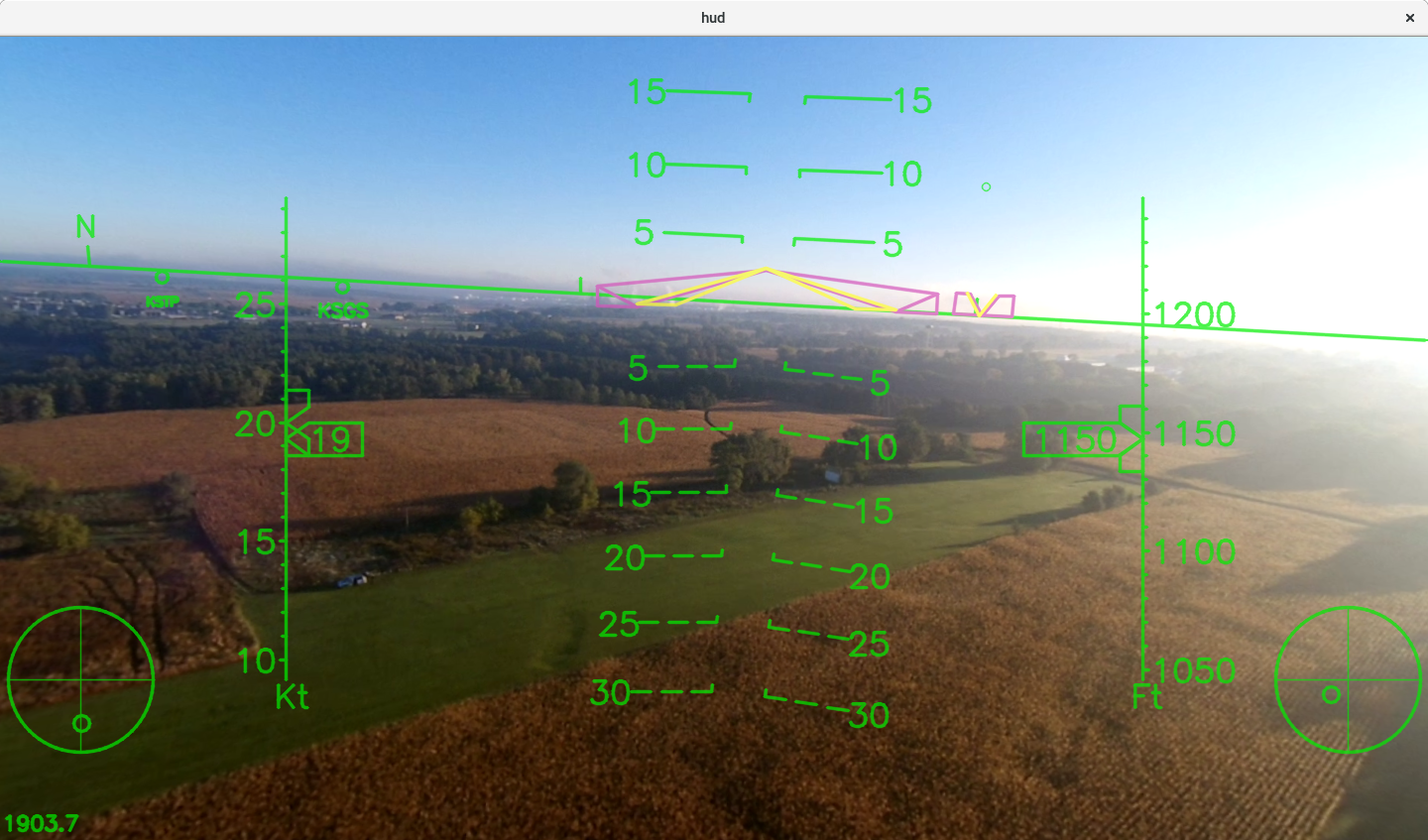
On Thursday, November 22 (Thanksgiving day) my Senior Telemaster past an interesting milestone: 12 cumulative hours of fully autonomous flight. This may not sound like a whole lot, but it represents 58 separate flights over the span of 3 years. In every flight it has performed beautifully and majestically and very scale like. It is not a fast aircraft, but it’s solid, forgiving, and controllable even at very slow airspeeds. It has a lot of room, a lot of carrying capacity, and it’s very tolerant of CG changes. I have flown it on calm days and I have flown it in up to 27 kt winds (31 mph) that were gusting to higher at times. With a set speed of 30 kts there have been times it has been blown backwards in flight! She has seen sun, clouds, fog, drizzle, and even rain. Winter, summer, spring, fall, hot days, cold days — she’s seen just about everything. Through all of this it has been a solid, reliable, patient, unfailing work horse — and she’s still going as strong as ever!

She has been a test bed for 4 major autopilot revisions:

  • An original gumstix :gumstix” processor + a Xbow MNAV sensor head.
  • A gumstix “verdex”+ a sparkfun 6DOFv4 IMU
  • A gumstix “verdex” + a VectorNav VN-100T temperature calibrated IMU
  • A gumstix “overo” + a 3D Robotics APM2.5 “sensor head”

I recall one close call where I made a code+hardware change and didn’t check it thoroughly enough.  Transitioning to autonomous flight resulted in an immediate full throttle dive towards the earth.  I switched to manual mode (almost not quickly enough) and was able to manually recover from the dive just in the nick of time.  That is the only time I’ve put any serious flex on the wings!

I recall one landing when the farmer’s corn was 8′ tall and completely surrounding our little patch of flying field.  I typically had to come over the edge of the corn with inches to spare in order to get it down and stopped before the end of our flying field.  On this day we had crazy gusting cross winds and as I cleared the corn the wind just fell out from under the telemaster.  It dropped from maybe 10′ of altitude and came to a complete stop no more than 5′ from the approach edge of the corn.  That has to be my all time shorted landing with any aircraft (only counting landings on the wheels.) :-)

So thanks to my trusty work horse for many good years of service with hopefully many more to come!

Setting up “autologin” on a gumstix running the 3.5 kernel (yocto, poky, et. al.)

The gumstix.org wiki has a page on how to configure your gumstix to auto-login on boot.  This can be very nice for “production” systems where the intention is to power on and run some specific firmware/code every time.

However, with the new Yocto/Poky images based on the 3.5 kernel, things have changed and the old instructions no longer work.  Here is a quick recipe to get autologin running again on the newer systems.  First of all credit to http://fedoraproject.org/wiki/Systemd for their section on setting up autologin on a virtual terminal with the new systemd architecture.

Step #1:

Compile this “autologin.c” program and install it to /sbin/autologin (make sure you have executable permissions, etc. etc.)

#include <unistd.h>
#include <stdio.h>
#include <string.h>
 
int main()
{
       int nrv = 0;
       FILE* fptr = 0;
       char user[64];
 
       // clear buffer
       memset(user,'\0',64);
 
       // open autologin profile file
       fptr = fopen("/etc/autologin.profile\0","r\0");
 
       // make sure the file exists and was opened
       if (fptr != 0)
       {
               // the return value from fscanf will be 1 if the autologin profile name is read correctly
               nrv = fscanf(fptr,"%s\0",user);
       }
 
       // only autologin if the profile name was read successfully,
       // otherwise show the regular login prompt
       if (nrv > 0)
               nrv = execlp("login\0","login\0","-f\0",user,0);
       else
               nrv = execlp("login\0","login\0","\0",0,0);
 
       return 0;
}

Step #2

Create the /etc/autologin.profile file by running:

echo "root" > /etc/autologin.profile

The autologin program looks for this file to determine which user id should be autologged in.

Step #3

Setup the systemd configuration.

cp /lib/systemd/system/serial-getty@.service /etc/systemd/system/autologin@.service
ln -sf /etc/systemd/system/autologin@.service /etc/systemd/system/getty.target.wants/serial-getty@ttyO2.service
cd /etc/systemd/system/getty.target.wants/
vi serial-getty@ttyO2.service

Next, change the line that reads”

ExecStart=-/sbin/agetty -s %I 115200

to read:

ExecStart=-/sbin/agetty -n -l /sbin/autologin -s %I 115200

Troubleshooting

  • If you still get a login prompt, make sure you created the /etc/autologin.profile file correctly, the autologin program needs that or it will just execute a standard login prompt.

Step #4

You may find yourself in a situation where you may not always want your code executed automatically.  You may want an option to “break in” and get a prompt.  There are many ways you could do this, but here’s one simple way:

Compile the “pressanykey.c” code and install the executable in /sbin/pressanykey

#include <stdio.h>
#include <stdlib.h>
#include <string.h>
#include <sys/types.h>
#include <termios.h>
#include <unistd.h>
 
int kbhit(void)
{
    fd_set rfds;
    struct timeval tv;
    int retval;
    struct termios term, oterm;
    int fd = 0;
    tcgetattr( fd, &oterm );
    memcpy( &term, &oterm, sizeof(term) );
    cfmakeraw(&term);
    tcsetattr( fd, TCSANOW, &term );
    /* Watch stdin (fd 0) to see when it has input. */
    FD_ZERO(&rfds);
    FD_SET(0, &rfds);
    /* Wait up to one seconds. */
    tv.tv_sec = 1;
    tv.tv_usec = 0;
    retval = select(1, &rfds, NULL, NULL, &tv);
    /* Don't rely on the value of tv now! */
    tcsetattr( fd, TCSANOW, &oterm );
    return(retval);
}
 
int mygetch( ) {
    struct termios oldt, newt;
    int ch;
    tcgetattr( STDIN_FILENO, &oldt );
    newt = oldt;
    newt.c_lflag &= ~( ICANON | ECHO );
    tcsetattr( STDIN_FILENO, TCSANOW, &newt );
    ch = getchar();
    tcsetattr( STDIN_FILENO, TCSANOW, &oldt );
    return ch;
}
 
int main(int argc, char **argv) {
    int count = 5;
 
    if ( argc > 1 ) {
	int tmp = atoi(argv[1]);
	if ( tmp > 0 ) {
	    count = tmp;
	}
    }
 
    printf("Press any key ... ");
    fflush(stdout);
 
    while ( count >= 0 ) {
	printf("%d ", count);
	fflush(stdout);
 
	//int result = mygetch();
	if ( kbhit() ) {
	    return 1;
	}
	//sleep(1);
	count--;
    }
 
    return 0;
}

Next create a ~/.profile file that includes the following:

  /sbin/pressanykey 5
  if [ $? != 0 ]; then
    echo "Starting interactive shell"
  else
    echo "Continuing with default"
    /path/to/my/code
  fi

Now, along with autologging in as root (or which every user you specified) you will then be presented with a count down timer similar to the “u-boot” timer where you can press any key to get a shell prompt, or continue to your firmware code if no interaction is required.

Hacking the APM2 Part #5: Flight Testing

This is the payoff video showing the hybrid autopilot system in action in the Resolution 3 airframe. (By the way, this is HD video so watch it full screen if you can!)

I am skipping many details between integrating the hardware and flying, but just as a quick overview:

We first integrated the system into a Senior Telemaster.  After 4 trips to the field over the span of 2 days, numerous flights, and a bunch of work in the evenings, we felt like the system was coming together and working every bit as well as it was supposed to.  There are always more things we could do with the telemaster airframe, but now that we were fairly confident that the system was working end-to-end as designed, we dropped it into our Resolution 3 (blended body, composite flying wing airframe.)  The new hybrid autopilot system needed some gain adjustments versus the old prototype autopilot so we guessed at those based on what changes were needed with the Telemaster configuration.

We enjoyed a flawless bungee launch of the wing, climbed to altitude, flipped over to AP mode, and the aircraft flew off flawlessly and ran through it’s demo routine without a hitch.  The clouds were dramatic and we noticed a rain squall moving in, so we landed and packed up just as the rain set in.

Here are some high points of the new system:

  • 800Mhz ARM processor (with hardware floating point) running a 15 state kalman filter and all the autopilot and navigation code.
  • WGS-84 math used for heading and route following.
  • Accurate yaw estimation when the filter converges.
  • Accurate wind estimation
  • 100hz sensor sampling, 100hz filter updates, 100hz autopilot and navigation updates, 100hz actuator updates with up to 400hz PWM signal generation rate for digital servos.
  • APM2 sensors.
  • Tablet/smart phone/laptop ground station interface.

If you just like airplanes, here’s some nice footage of our Telemaster landing.  This video was taken during our 2 days of Telemaster integration effort …

Landing in psycho winds:

In calmer winds:

Last flight of the day:

Hacking the APM2 Part #4: Laying out a “hybrid” system

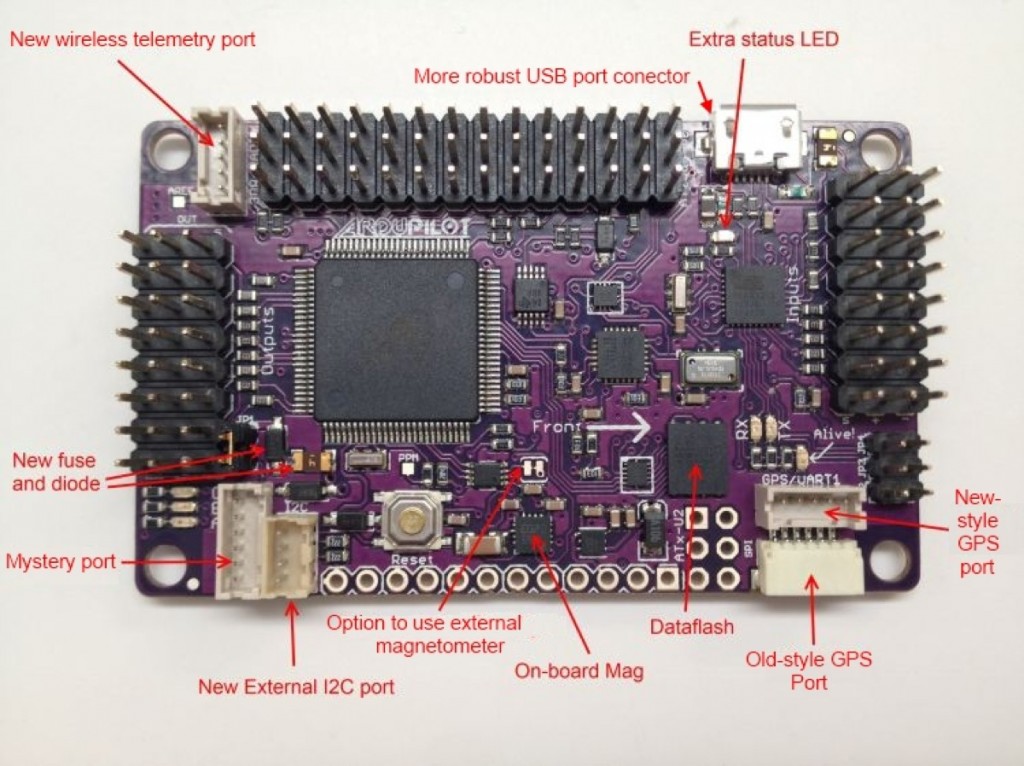
Imagine for one second that you are a UAV developer. The DIYdrones ArduPilot is an awesome piece of hardware; you love all the great sensors that are attached; you love the all-in-one design and the small/light size.  But you are also feeling the limits of it’s ATMega 2560 processor and the limits of it’s 256Kb of RAM.  And maybe, you enjoy developing code within a full blown Linux developers environment with all the supporting libraries and device drivers that Linux has to offer.

Hardware Layout

Here is a picture of a protype “hybrid” autopilot system for small UAV’s.  What you see in the picture includes:

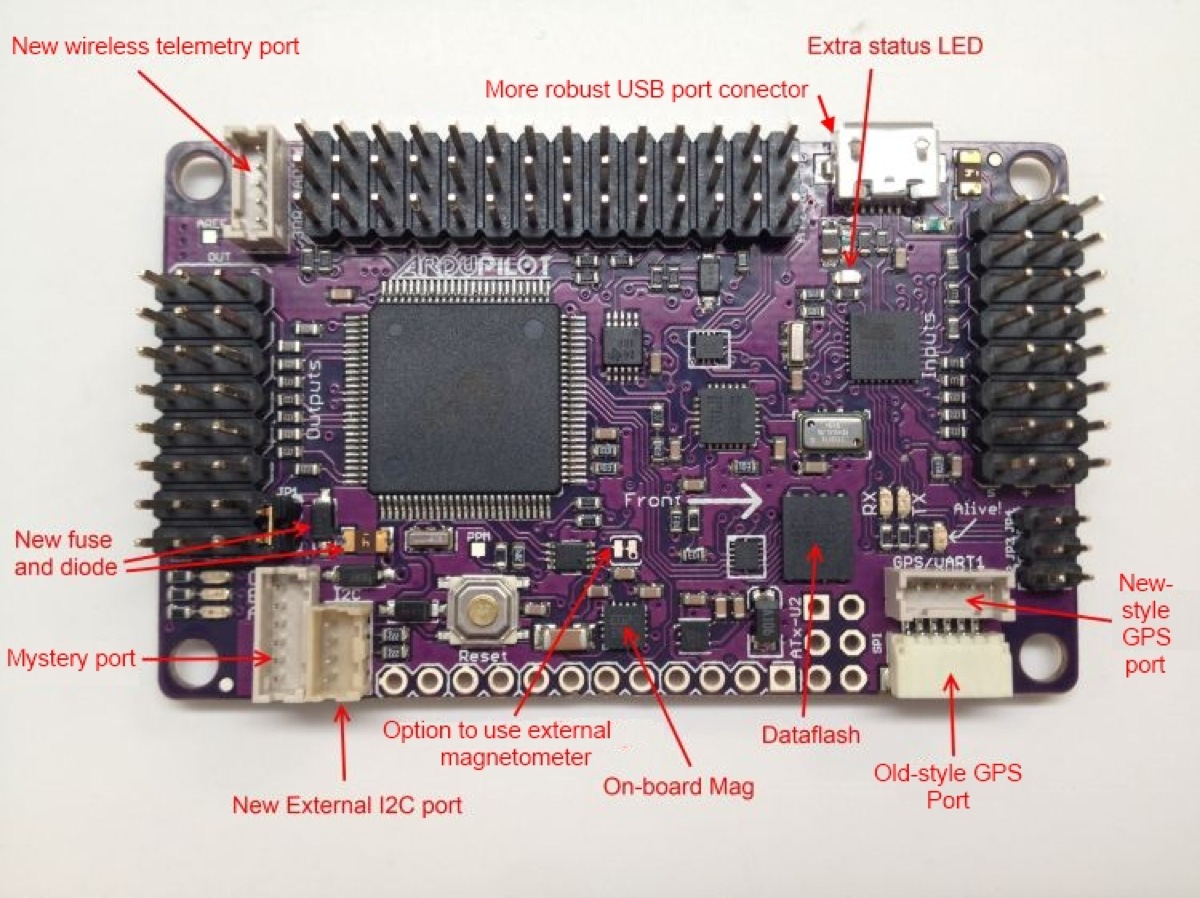
  • An ArduPilot Mega 2.0 (lower left)  The APM2 includes an MPU-6000 IMU, a Mediatek 5hz GPS, static pressure sensor, compass, and a variety of other items.
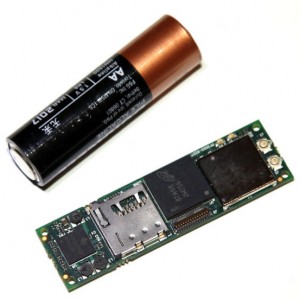
  • A 1Ghz Gumstix Overo with a Pinto-TH expansion board. (longer thinner board, upper right).  The Overo runs Linux, has 512Mb of RAM, and has a hardware floating point processor.
  • An MPXV7002DP pressure sensor (upper left).  This is attached to a pitot tube and measures airspeed.
  • A Sparkfun TTL level translator (between the overo and the pressure sensor)
  • A Futaba FASST 6 channel receiver (lower right)
  • A set of power distribution rails (8×3 block of 0.1″ pins.)
  • [not shown/mounted remotely] Digi Xtend 900Mhz radio modem.

The above picture was deliberately taken without most of the wires to show the components.  Once all the wires are connected, things will look much more “busy”.  This is a prototype system so the components will be jumpered together, probably with a bit of hot glue here and there to ultimately secure the wiring before flight.

Software Layout

Just as important as the hardware layout is the software layout.  This is maybe a bit more boring and I can’t really take a picture of it to post here, but I will give a few bullet points for anyone who might be interested.

  • The APM2 runs a custom built firmware that simply collects all the sensor data, packages it up into checksummed binary packets, and sends the data out over a uart.  In addition, the APM2 reads checksummed binary packets inbound over the same uart.  Generally inbound packets are actuator commands.
  • The Overo runs a custom built autopilot application that is portable.  It is not device/hardware independent, but it is designed to talk to a variety of hardware over a common interfaces.  This Linux-based autopilot app can read all the sensor data from the APM2 (being transmitted at 100hz over a 500,000 baud link.)  The autopilot app runs a computationally intensive 15-state kalman filter.  Manages the mission tasks, computes wgs-84 great circle navigation targets, runs the low level PID code, and ultimately sends servo position commands back to the APM2 over the same 500,000 baud link.
  • The high level autopilot software runs in an environment that is more natural and has more power/space for developing the “high concept” portions of the code.  The APM2 is great for reading a bunch of sensors really quickly.  In a hybrid system both major components are able to do what they do best without having to suffer through tasks they aren’t as good at.
  • The high level autopilot is configurable through a structured XML configuration system.  It includes an advanced 15-state kalman filter.  It runs the same PID code configured in the same way as the FlightGear flight simulator.  It also includes the same “property system” that FlightGear pioneered.  It includes a rich set of IO API’s, and hopefully will soon sport a built in scripting engine.
  • A word about the “property system”:  The property system is an in-memory tree structure that relates “ascii” variable names to corresponding values.  There is loose type checking and on-the-fly type conversion similar to many scripting systems (I can write a value as a ‘string’ and read it back out as a ‘double’ and the system does sensible conversions for me.)  Any internal module can read/write the property tree, so it is a great way to build “loose” interfaces between modules.  Modules simply reference the values they need and there is no compile time enforcement.  This allows for building “robust” interfaces and eliminates much of the cascading changes throughout the code when a class gets updated.  In addition, we can build external network interfaces to the property system which allows external scripts or other code to monitor and even modify the property tree.  This allows external scripts access to the core values of the sim and access to set modes and otherwise “drive” what the autopilot does.  In addition, there is a natural one-to-one mapping between the property tree and an xml config file.  This is handy for easily loading/saving configurations.  At a low level, property system variable access from the core code is simply a pointer dereference, so using these values is almost as fast as referencing a locally scoped variable.  It is hard to describe in a few words what all the “property system” is or does, but it’s an amazing infrastructure tool that helps build flexible, robust, and high functioning code.

September 7, 2012 Update:

Here is a picture showing the whole system plugged together with 6″ sparkfun jumper wires.  The wiring gets a little “busy” when everything is connected together so I plan to do some work buttoning things up, simplifying, and cleaning up the wire runs.  I’ve attached 3 servos to test auto vs. manual outputs.  You can see a 900Mhz Xtend modem (1 watt power, 115,200 baud), and the entire system is powered by a single RC receiver battery.  In the aircraft this should all run just fine off the BEC.  And here is a video of everything in action:

That’s about it. The modified APM2 firmware is happy and running.  The overo autopilot code is up and running and talking to the APM2.  Next up is validating the radio modem ground station connection, and then I’m running out of things to do before dropping this into an airplane!

September 17, 2012 Update:

It’s far from a perfect integration, but I spent some time this evening bundling up wires.  Definitely an improvement.  Working towards full integration into a Senior Telemaster (electric powered) and hope to do some first test flights later this week.  Today I test fit everything, powered everything from the main flight battery and verified basic control surface movements in manual mode and autopilot mode.  The radio modem link is running and the mapping and instrument panel views on the ground link up and run.

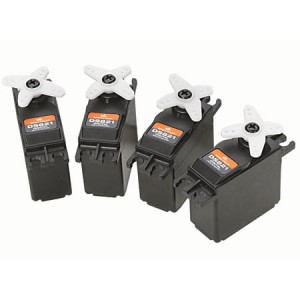
Hacking the APM2 Part #3: Servos

Here are a few random notes on the APM2 and servos.

As we all know, the servos are controlled by sending a digital pulse on the signal line to the servo.  The length (time) of the pulse maps to the position of the servo.  A 1500us pulse is roughly the center point.  900us is roughly one extreme and 2100us is roughly the other extreme.  Different systems will use slightly different numbers and ranges, but these are good numbers to start with.  Historically, RC systems stacked the pulses for multiple channels on a single radio signal — affectionately called the “pulse train.”  If you crunch the numbers — given a max pulse width of about 2000us and a bit of inter-pulse spacing, we can send about 8-10 channels of data at 50hz on a single signal line.  Standard analog servos are designed to expect 50 pulses per second and can misbehave if we send a faster signal.

With modern 2.4Ghz systems, the servo/channel data is sent digitally and at much faster data rates.  Receivers drive each servo pulse concurrently and the concept of a “pulse train” is largely gone — as is the need to space things out at a 50hz rate.  If you crunch the numbers again and look at a max pulse width of 2000us with a bit of inter-pulse space, we can actually send servo data at 400hz to a digital servo and it will respond as expected.  (8 channels at 50hz, 1 channel at 400hz — makes sense.) :-)

What does all this mean to an UAS builder?

  • It means that if we use digital servos, we can send position updates to the servo and expect some response at up to a 400hz rate. In real life these servos have mass, motors that take time to move, on board electronics that take time to process the signal, and other factors, so we can’t expect instantaneous response, but we can expect an improvement over the old 50hz analog servos.
  • It means we have a strong motivation to sample our sensors faster than 50hz, run our attitude filter faster than 50hz, run our guidance, control, and navigation code faster than 50hz, and command our actuators faster than 50hz.
  • It means that if we can increase our throughput to 100hz or 200hz, we can have a far more responsive and “tight” system than we could if everything was running at 50hz.  Faster response to gusts and disturbances, ability to counter more of the aircraft’s natural dynamics.  With proper autopilot tuning, this can lead to a much higher quality system, much more accurate flying, and a much more stable platform to hang our sensors off of.

The APM2 has the ability to set the PWM frequency for the output channels.  Channels are grouped and several hang from a single clock generator so we can’t change the PWM rate individually, but we can do it for groups of channels.  Question: if our system is running at a full 100hz update rate, does it make sense to set the servo output rate to 100hz or something higher?  I argue that we should set the output rate as high as is possible (400hz) because the servo will pick up a change fractionally quicker at a 400hz output rate than at a 100hz output rate.  In the end though, most servos are somewhat noisy and crude and subject to physics, so it may not have a huge noticeable effect, but any little thing that makes the system more responsive and increases the end to end throughput from sensing to responding is welcome.

Hacking the APM2 Part #2: Fun with Baud Rates

The autopilot architecture I am building involves and APM2 collecting all the sensor data and sending it over a serial connection to a Gumstix Overo running Linux, and then in return the Overo sends servo commands back to the APM2.  As you can guess, this turns out to be quite a bit of data being sent at a high rate.  If all the processing, filtering, and computation is being done on the Overo it is important to have a high update rate, low latency, reliable communication, and no major pauses in processing at either end.

In this architecture, the APM2 isn’t running the DCM filter.  It is not logging to the SD card, it is not communicating with the ground station.  It is simply collecting all the sensor data and blasting it across the data pipe to the Overo.

First let’s do a little math.  I have 6 packet types (so far) of varying sizes: Pilot Input = 16 bytes, IMU = 14 bytes, GPS = 36 bytes, Barometer = 12 bytes, Analog Inputs = 10 bytes, Actuator Commands = 16 bytes.  In addition, each binary packet has 2 start bytes, a packet ID, a size byte, and a 2-byte checksum — a six byte wrapper.  Assuming we send one of each packet, that would be 140 bytes.  Assuming we want to send a set of these packets 100 times a second, that is 14,000 bytes per second.  (I realize we don’t send the gps data at 100hz, but for the sake of simplicity and margins, let’s pretend we do.)  Now assume for the purposes of computing required baud rates, there are 10 bits per byte.  That means we would need to run at least at 140,000 baud to handle all the traffic we need.

Many software packages (including the arduino dev system and the arduino docs) seem to think that 115,200 baud is that maximum rate possible, so this could be a problem!

The next “standard” baud rate above 115,200 is 230,400.  It turns out that the APM2 FastSerial code happily let’s me specify this baud rate and my Linux based Overo does as well.  I tested this with the USB console connection and it works.  (Or so I thought.)

My next task was to get the communication link running on a direct UART connection.  This will simplify aircraft integration, reduce cable weight, etc.  However, as soon as I moved to a direct connection, the APM2 could no longer see data coming back from the Overo at 230,000 baud.  What is going on here?

The standard baud rates since the beginning of time have always been 300, 1200, 2400, 4800, 9600, 19200, 38400, 57600, 115,200, 230,400, etc.  However, when I dug into the Arduino FastSerial code and the Mega 2560 data sheet I discovered that the Arduino does things completely differently.  Baud rate is defined relative the system clock divided by an integer value.  When you ask for 115,200 baud, FastSerial crunches that value through a funny formula, comes up with an approximate integer divider and sets the baud based on that.  So when you crunch the math, what baud rates does the Arduino actually support?  It turns out you can do: 1,000,000, 500,000, 333,333, 250,000, 200,000, 166,666, 142,857, 125,000, 111,111, 100,000, 90,909, … etc.

So here’s the funny thing.  The uarts at both ends have some flexibility and can successfully communicate even if the other end isn’t exactly on the correct pace.  When you request 115,200 baud on the APM2, you are actually getting 111,111 baud!  But the other end can usually handle a little slop and no one ever notices.  The problem is that the arduino cannot do 230,400 baud — the options are either 200,000 or 250,000 baud and both of them are too far away from 230,400 to handle the timing slop.  In my case, the Overo actually could handle the APM2 output, but the APM2 couldn’t read the 230,400 baud incoming data from the Overo.

!@#$@#$!@!!!!

The next question I asked myself was how hard would it be to rewrite the linux serial drivers to support different baud rates, but quickly I decided that was just a path I didn’t want to head down unless there was absolutely no other option.

Finally I started looking to see if there were any matching (or very close) baud rate options faster than 115,200.  The only one I could find was 500,000 baud.  But that’s crazy fast and couldn’t possibly work, right?  Well if my other option is to start hacking linux serial drivers, I decided I could at least set the baud on both ends to 500,000 and see what happens.

And the answer is:  IT WORKED!

So I’m running 500,000 baud between the APM2 and the Gumstix Overo.

There are questions though — can the APM2 keep up with this?  Can the Overo keep up with this? What happens if the system is busy processing interrupts.  Are the ring buffers big enough to keep up?  Will we drop data?  Are there other hidden places where this could all break down or blow up?  I think the answers to those questions remain to be worked out and depend quite a bit on the loads at each end of the pipe.  This gets back to the delicate balance required by embedded systems and the requirement to carefully work your way forward and understand the systems at all levels in order to achieve a solid result.

Question: if 100hz updates require about 140,000 baud, then 200hz updates would require 280,000 baud — hmmm.  Does this mean it would be possible to sample the sensors at 200hz, send the data to the 1Ghz Overo at 200hz, run my kalman filter attitude estimate at 200hz, run my autopilot PID’s at 200hz, my navigation code at 200hz, and send actuator commands back at 200hz?  (Assuming digital servos that can respond to PWM rates as high as 400hz.)

Update: September 4, 2012

I have reconfirmed that the Gumstix Overo cannot transmit two serial streams simultaneously.  I use one serial port for the APM2 interface and one serial port for the wireless ground station interface.  The issue is that if I dump a big chunk of data @ 115,200 baud from the flight computer to the ground station, no APM2 communication can happen until that transaction flushes through.  The strategy I will employ for now is to stuff ground station messages into a local (user space) buffer and then trickle a few bytes out per frame to the serial driver.  This forces me to pace the ground station messages so I don’t overflow my application level buffer (which would reject new messages until there is sufficient space freed up) but that is something I need to do anyway because there is finite capacity in the bandwidth to my radio modem and the radio modem itself has finite capacity which diminishes with distance.  Just another reminder that with embedded systems we can’t have everything we want simultaneously, and the trick is to find a good (and delicate) balance between all the different components and needs.

Update September 7, 2012

Life is never easy!  I have discovered the Overo serial drivers in the Linux 3.x kernel now work a lot harder to match the standard baud rates very closely:  115,200, 230,400, 460,800, and 921,600.  None of these are a close enough match to the APM2′s list of nonstandard baud rates — 200,000, 250,000, 333,333, 500,000, and 1,000,000.  This is a major annoyance!!!  The Overo serial drivers in the Linux 2.6.x kernels seemed to do an actual 500,000 baud, but unfortunately that is gone.  It all has to do with clock dividers and stuff.

What I have done for the moment is work on trimming some of the fat off my binary packets and I’m sending data at 115,200 baud which does (thankfully) still work!  This is sufficient for my current needs so I can move forward, but it does quell any thoughts of running everything end-to-end at 200hz on this layout.  But perhaps with some attention to trimming more fat and perhaps only sending core IMU data at 200hz we could still build a system that inherently has 200hz throughput where it matters.

Hacking the APM2 Part #1: Introduction

Introduction

I would like to start off my first post in this series by briefly describing where I’ve been and where I’m going.  Hopefully this will give a bit of context to help understand subsequent posts and hopefully will help put my engineering decisions in some context.

History of the World, Part 1

Somewhere around 2005 I became very interested in aerial robotics.  I have always been an aviation enthusiast, I’ve built model airplanes since I was a kid, and I have been flying RC airplanes since high school.  At the time I was working for the Univ. of Minnesota and managed to get myself sent off to a training class for a little device called a Crossbow MNAV.  The MNAV was a small package that included mems gyros, accelerometers, altimeter, air speed, GPS, RC receiver PPM train decoding, and could control up to 8 servos.  It was perfect for building a small UAV autopilot.  As it turned out, even though the MNAV was pretty good for it’s time, it wasn’t perfect — and about 2 years later when I finally had my code up and flying successfully, Xbow announced they had discontinued the MNAV.

My autopilot code was written for Linux.  I had been running it on a 400mhz Gumstix processor (the really old one) and that talked to the MNAV over a serial connection.  The MNAV sent up the IMU and GPS data to the Gumstix which ran the attitude filter, autopilot, and navigation code, and sent servo positions back to the MNAV.  This worked rather well so I was pretty disappointed when the MNAV was terminated.

History of the World, Part 2

In a world with no MNAV I launched off on an adventure to build my own autopilot from off the shelf parts.  What made this possible was the original ArduPilot.  I could buy IMUs, GPSs, and processors off the shelf, but the ArduPilot gave me the ability to interact with RC servos, the RC receiver, and gave me a hardware failsafe mux, so whenever something went wrong with my code, I could immediately take over manual control of the aircraft.  As it turns out, this has saved me more times than I can count.

I ended up with a system built around the new Gumstix Verdex “pro”.  This processor ran at a whopping 600mhz and had enough number crunching power to run a full blown 15-state kalman filter at 50hz.  I connected a SparkFun 6DOFv4 IMU initially (ultimately upgraded to a VectorNav VN-100) for my inertial sensor, a ublox5 for my GPS, and of course the original ArduPilot for servo control.

At that time I hacked my own version of the ArduPilot firmware to talk directly to the Gumstix Verdex.  I left out all the AP stuff and simply used it to read the RC receiver and relay the pilot stick commands to the Gumstix, and then the Gumstix would send back servo positions to the ArduPilot which would take care of moving the servos to the specified positions.

History of the World Part 3

Time passes, a few projects came and went.  Now it’s 2012, and now the APM2 is released.  Compared to the original ArduPilot, the APM2 is a beautiful work of art!  It looks good, it packs on all kinds of high quality sensors, it has a powerful at mega 2560 processor, it is small, it is light, it is cheap, and it’s pretty well debugged because so many people are buying and flying them.

I decided it would be interesting to revisit my old autopilot design and modernize it based on the new APM2.  Any set of engineering decisions has plusses and minues.  Embedded autopilots are always a delicate balance between, size, weight, cost, capability, power requirements, etc.  And within those larger parameters, every architectural choice has subtle implications related to performance, latency, precision, capability, development tools, integration issues, unexpected surprises (good and bad), and on and on. On the one hand, there is a huge matrix of possibilities, and on the other hand specific choices have cascading effects and lead you in specific directions.  In the end, the goal is to find that magic balance of choices that lead you to an ideal outcome without sacrificing too many things along the way.

Looking to the Future

Where am I going with all this?  What do I envision my autopilot will look like at the end of the process?  Here is a quick summary:

  • An APM2 with firmware rewritten to simply collect all the sensor data and pass it up stream to my Gumstix for actual processing.
  • A Gumstix Verdex (1Ghz Arm) with hardware floating point, 512Mb of RAM
  • Linux based Autopilot software that includes a full 15-state kalman filter, XML configurable PID system, and advanced mission/task system.
  • Everything running at 200hz.
My work on this project has begun.  There are many challenges and unknowns that have already been met and solved, and I’m sure a few remaining challenges hiding on the other side of the horizon.  This just scratching the surface — I have been flying autonomous RC planes since 2007 with a variety of sensors and processors.  The autopilot itself is certainly a goal for me, but it is also a doorway we have to pass through to be able to work on so much more.

I plan to continue this “Hacking the APM2″ series with future posts describing interesting things that I’ve learned or issues that I’ve solved along the path; culminating (hopefully) with a “Super ArduPilot Mega 2 on 1Ghz ARM Steroids” based autopilot system.

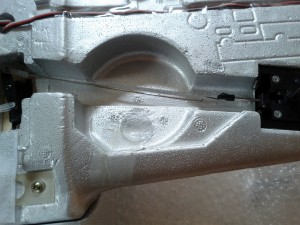
More wing related repairs

I encountered two more issues that I needed to address:

  1. The cheap retract servo stripped out.
  2. The rear wing hold down threads stripped out.

I replaced the retract servo with a much higher quality hi-tech metal gear servo and spent about 10 minutes fiddling with end point adjustments and linkage lengths to try to get non-binding operation and minimize the servo buzz.

The stripped rear wing hold down threads was a bigger problem.  I tried to glue a nut to the back to replace the cheap plastic threaded plate, but just made a mess of things, got glue on the threads, etc.  Just a big mess that was hard to deal with due to it’s location and inaccessibility when things are lined up and put together.  So I went old-school — found a “blind” or “t” nut (like you use when kit building to anchor firewall mounts, wing mounts, etc.) and found a matching non-metric screw (my hardware store doesn’t sell metric t-nuts.)

So that’s it — no pictures, but the repairs are complete and the bird is airworthy again — at least until the next cheap part strips or breaks. :-)